GPT Image 1.5 by OpenAI is on Elodan AI: A Complete Guide — Mastering Structured AI Image Generation for Everyday  Creativity and Precision

GPT Image 1.5 by OpenAI is on Elodan AI: A Complete Guide — Mastering Structured AI Image Generation for Everyday Creativity and Precision

Manar Yousry

April 2, 2026|4 min read
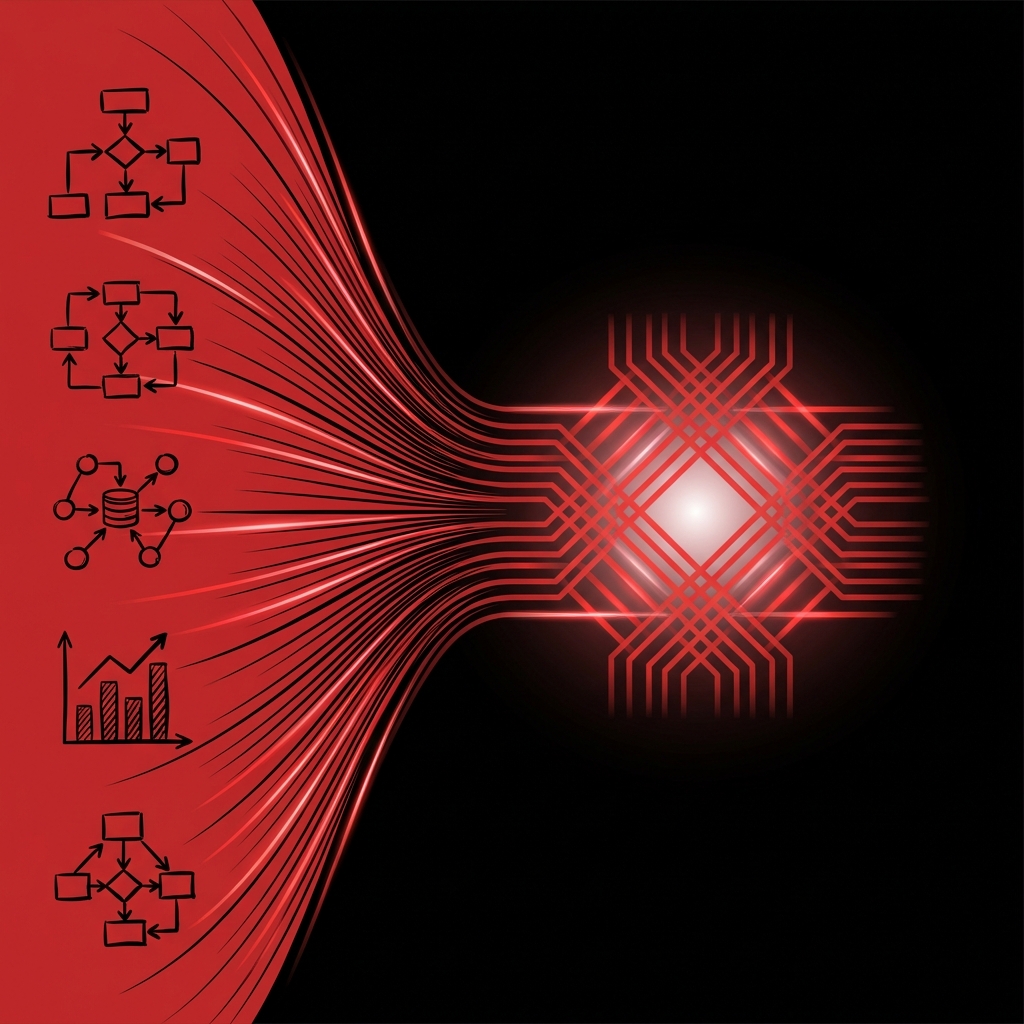
Hey, creative thinkers and productivity pros! Ever wished for an AI tool that nails down your ideas with laser-sharp clarity, turning sketches, diagrams, and prompts into polished visuals without the fluff? That's GPT Image 1.5 by OpenAI, now live on Elodan AI, your go-to platform for chat, text-to-image, image-toimage, text-to-video, image-to-video, and audio tools. This reasoning-first generative engine is all about dependability, making it perfect for structured tasks like infographics, analysis, and visual planning. Whether you're brainstorming concepts or organizing complex info, GPT Image 1.5 delivers consistent, high-quality AI image generation that fits right into your workflow. Let's break it down—how it works, its strengths, and a step-by-step guide to using it on Elodan AI for top-notch results.

What GPT Image 1.5 Is Built For

GPT Image 1.5 is designed as a solid, no-nonsense AI image generation tool that prioritizes clarity, structure, and smart reasoning over flashy effects. It's ideal for users who need precise, multimodal processing for everyday tasks like diagrams, writing aids, and concept visualization. Think of it as your reliable partner for logical workflows—great for educational content, business planning, or any scenario where accuracy and organization matter more than artistic flair. On Elodan AI, it integrates seamlessly with our suite, letting you blend text prompts with images for cohesive outputs that feel intuitive and dependable.

Core Input Capabilities

This model shines in handling diverse inputs, making it a breeze for hybrid creative processes. Here's what it supports:
  • Supported Input Types:

    Multiple reference images (up to 5–6 for best results), sketches, diagrams, charts, graphs, screenshots, or pure text prompts.
  • Input Modes on Elodan AI:

    Multimodal mode for uploading images plus writing a prompt, or text-only mode for pure reasoning and explanation tasks
This flexibility lets you mix visuals and text effortlessly, guiding the AI to generate exactly what you need.

Output Quality & Technical Specs

GPT Image 1.5 focuses on sharp, moderate-quality outputs that get the job done without overcomplicating things. Key specs include:
  • Image Generation:

    Resolutions up to 1.5K, with quality settings like low (quick previews), medium (standard), and high (polished finals).
  • Supported Aspect Ratios:

    1:1 for square layouts, 2:3 for portrait diagrams, and 3:2 for horizontal formats.
These options ensure your AI image generation fits various needs, from infographics to presentations.

Key Use Cases for GPT Image 1.5

OpenAI's GPT Image 1.5 excels in logic-driven scenarios, making it a standout for structured creativity. Top applications include:

Infographic Generation:

Create clear, data-driven visuals for reports or social media.

Diagram Interpretation & Visualization:

Turn sketches into organized diagrams or flowcharts.

Problem Solving & Reasoning:

Handle step-by-step tasks, summaries, rewrites, or outlines.

Concept Visualization:

Develop ideas, plan projects, or organize instructions with multimodal inputs.

Multimodal Reasoning:

Combine multiple images for cohesive outputs, like merging wireframes or charts. It's perfect for users seeking stability and reduced errors in AI image generation.

How GPT Image 1.5 Processes Multi-Input Tasks

GPT Image 1.5 excels at understanding and fusing multiple inputs into one logical output. It best interprets:
  • Layout and spatial relationships
  • Diagram labels and proportions
  • Information flow and hierarchies
This makes it great for refining partial ideas into polished AI-generated images, with consistent behavior and low risk of hallucinations.

Step-by-Step Guide: How to Use GPT Image 1.5 on Elodan AI

Ready to dive in? Here's a simple guide to get started with GPT Image 1.5 on Elodan AI:

Navigate to the Apps Section:

Head to Elodan AI, go to the Image directory, and select the GPT Image 1.5 model.

Choose Your Input Mode:

Pick multimodal (images + text) or text-only for reasoning tasks.

Upload Reference Images (Optional):

Add up to 5–6 relevant images like sketches or diagrams—keep them clean and on-topic.

Write a Clear, Structured Prompt:

Be descriptive, explain structures, and outline relationships for the best AI image generation results.

Select Image Quality:

Opt for low, medium, or high based on your needs.

Set Your Aspect Ratio:

Choose 1:1, 2:3, or 3:2 to match your layout.

Generate Your Output:

Hit generate and let Elodan AI process it—expect clean, aligned results.

Best Use with Elodan AI

Elodan AI is built for creators juggling writing, visualization, and planning, and GPT Image 1.5 fits right in by offering predictability, stability, and smooth multimodal fusion. It's low-friction for everyday use, making it a go-to for academic, creative, and professional tasks.

Conclusion: A Model Built for Everyday Creative Intelligence

GPT Image 1.5 by OpenAI on Elodan AI is a smart choice for those who value reasoning, clarity, and structured AI image generation over complexity. It's your approachable assistant for visualizing ideas, explaining concepts, and organizing info—perfect for boosting productivity in any workflow. Ready to generate your next masterpiece? Let's make it happen on Elodan AI!
#ai - image
Try it now — Free to start

Ready to Create with AI?

Generate stunning images, videos, and voiceovers with the power of AI. Start your creative journey today.

Start Creating Now